
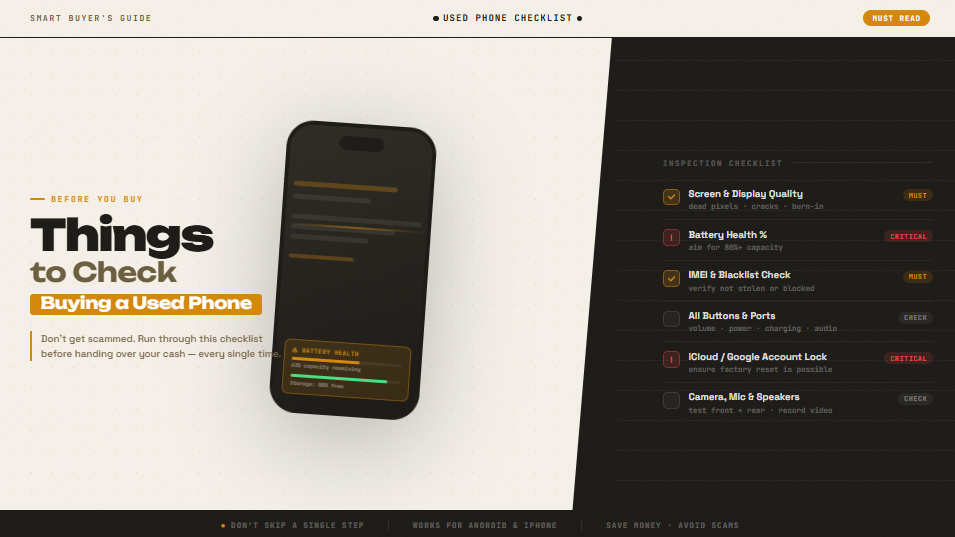
Buying a used phone can save you hundreds of dollars but only if you know what to look for. One wrong purchase and you could end up with a device that has a cracked screen hiding under a cheap protector, a battery that dies by noon, or worse, a phone that’s been reported stolen and is permanently locked.
This guide walks you through everything you need to inspect before handing over your money, whether you’re buying from a stranger on Facebook Marketplace, a refurbished phone store, or a friend.
#1. Check the IMEI Number First
Before you even meet the seller or place an order, ask for the phone’s IMEI number (dial *#06# on the phone to find it). Run it through a free checker like:
This tells you whether the phone has been reported stolen, blacklisted, or has unpaid installments on it. A blacklisted phone won’t connect to any network, making it essentially a very expensive paperweight.
Rule of thumb: If the seller refuses to give you the IMEI, walk away.
#2. Inspect the Screen Carefully
The screen is the most expensive component to replace. Check for:
- Dead pixels: hold the phone against a white background and look for dark spots
- Burn-in: faint ghost images of a previous screen layout (common on AMOLED displays)
- Cracks or scratches: run your fingernail gently across the screen to feel for hairline cracks
- Touch responsiveness: open a note app and scribble all over the screen; every stroke should register
Test the screen in a bright environment, not in a dim room where damage is easier to hide.
#3. Test the Battery Health
Battery degradation is the number one hidden problem in used phones. A phone might turn on fine but struggle to last through a half-day of normal use.
How to check:
- iPhone: Go to Settings → Battery → Battery Health & Charging. Anything above 85% is good; below 80% and the phone may already throttle performance.
- Android: Most Android phones don’t show battery health natively, but you can dial
*#*#4636#*#*on Samsung and some other devices to access a hidden battery menu. Third-party apps like AccuBattery can also give you a reading after a charge cycle.
Ask the seller how old the phone is and how it was charged, frequent overnight charging degrades batteries faster.
#4. Test All the Buttons and Ports
This takes two minutes and can save you a major headache:
| Component | What to Test |
|---|---|
| Volume buttons | Press up and down; confirm they respond |
| Power button | Lock and wake the screen multiple times |
| Charging port | Plug in a cable and confirm it charges |
| Headphone jack (if present) | Plug in earphones and play audio |
| SIM card tray | Check it opens cleanly and isn’t bent |
Don’t skip the charging port, a loose or damaged port is common in older phones and can be expensive to repair.
#5. Check All the Cameras
Open the camera app and test every lens — front, rear wide, ultrawide, and telephoto if applicable.
Look out for:
- Blurry or foggy photos: could indicate a cracked inner lens or moisture damage
- Autofocus that won’t lock: tap different areas of the frame to test
- Black spots in photos: dust or debris on the sensor
- Front camera distortion: selfies should look clear and undistorted
Also test video recording, play back a short clip to check for audio sync issues or video stuttering.
#6. Test the Speakers and Microphone
Play a YouTube video at full volume and listen for:
- Crackling or distortion at high volume (a sign the speaker is blown)
- Muffled sound (could be a blocked speaker grille or internal damage)
To test the microphone, record a short voice memo and play it back. The audio should be clear, not hollow or staticky.
If the phone has stereo speakers, make sure both sides are working equally.
#7. Check for Water Damage
Many phones now come with water resistance ratings (IP67, IP68), but older models don’t and even water-resistant phones can be damaged if their seals are worn.
Signs of water damage:
- Corrosion around the charging port or SIM tray
- Foggy or condensation inside the camera lens
- LDI (Liquid Damage Indicator) sticker turned red, check inside the SIM tray slot; it should be white or silver
A phone with water damage may work fine today but fail unpredictably over time as corrosion spreads internally.
#8. Verify the Phone Isn’t Locked to a Carrier
A carrier-locked phone can only be used on one network. If you’re buying a phone to use with a different carrier or a local SIM card, this is critical.
How to check:
- Insert your own SIM card and see if it connects to your network
- Ask the seller directly if the phone is unlocked
- Check the settings — on iPhone, go to Settings → General → About and look for “Carrier Lock: No SIM restrictions”
A locked phone isn’t always a dealbreaker, some carriers unlock phones for free after a request but factor it in before you agree on a price.
#9. Factory Reset and Re-setup the Phone
Before finalizing the purchase, ask the seller to factory reset the phone in front of you (or do it yourself). This confirms:
- The phone isn’t still linked to someone else’s Apple ID or Google Account (which would trigger Activation Lock and make the phone unusable)
- There’s no hidden software, spyware, or apps left on the device
- The phone boots up and sets up without errors
This step is non-negotiable. An iPhone locked to a previous Apple ID cannot be bypassed not even by Apple stores.
#10. Cross-check the Box and Accessories (If Included)
If the seller is including the original box, check that:
- The IMEI on the box matches the phone’s IMEI
- The model number matches what’s being advertised
- Included chargers and cables are genuine, not third-party knockoffs
Mismatched boxes are a common sign that the phone has been swapped out or that the seller is being deceptive about the device’s history.
Bonus: Red Flags to Watch Out For
Even if the phone passes every test above, trust your gut. Walk away if:
- The price is significantly below market value with no clear reason
- The seller is reluctant to meet in person or insists on payment before inspection
- The seller can’t answer basic questions about the phone’s history
- The phone has aftermarket screen or parts not disclosed upfront (check with apps like Phone Checker on iPhone)
- There’s pressure to buy quickly — a common tactic used by scammers
Final Thoughts
Buying a used phone is a smart financial decision — as long as you go in prepared. The checks above take less than 30 minutes and can be the difference between a great deal and an expensive mistake.
Prioritize the IMEI check, battery health, and account lock status above everything else. The rest are important, but those three can make a phone completely unusable regardless of how good it looks on the surface.
Take your time, ask questions, and don’t let anyone rush you. A seller with a genuinely good product will have no problem letting you run through your checklist.
Found this guide helpful? Bookmark it before your next phone purchase and share it with anyone who’s about to buy secondhand phone.