
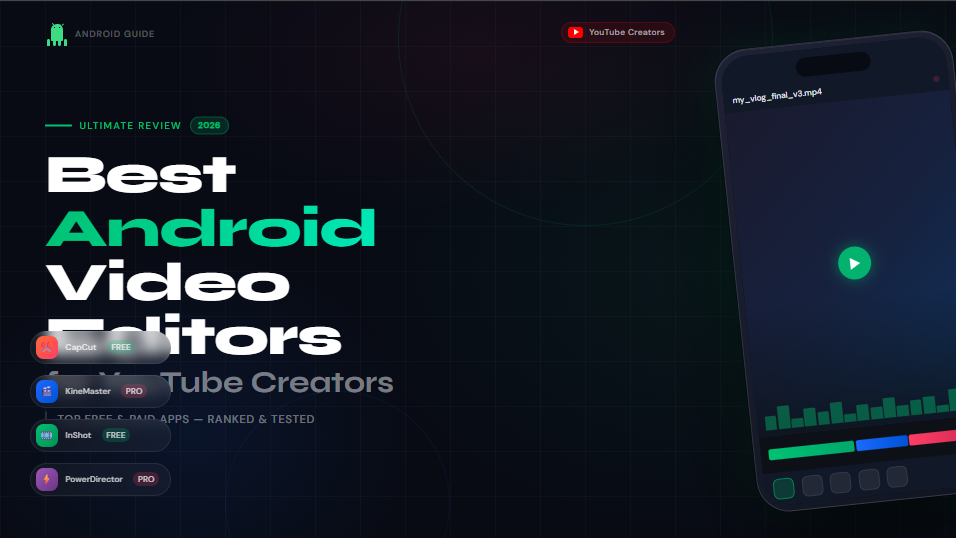
You recorded the footage. The lighting was decent, the content was solid, and now you are staring at your Android phone wondering how to turn raw clips into something people will actually watch until the end. Well the good news is that you do not need a laptop, a desktop, or expensive software to do it. The apps available on Android in 2026 are genuinely capable of producing YouTube-ready videos with proper timelines, multi-layer editing, 4K export, and no watermark on the final file, Lets find the Android video editor for YouTube.
The harder part is picking the right one. Some apps are built for 30-second social clips, not 10-minute YouTube videos. Others look great in screenshots but fall apart once you start editing anything longer than a minute. This guide cuts through that confusion. Each app below has been assessed specifically for YouTube use, meaning longer formats, horizontal framing, proper audio control, and export quality that holds up at 1080p and beyond.
What Makes a Good YouTube Video Editor on Android?
Before jumping into the list, it is worth understanding what separates a YouTube-capable editor from one that is really only designed for short social clips.
YouTube content typically runs longer than TikTok or Reels content often five minutes or more, which means the app needs a proper multi-layer timeline that does not slow down or crash as the project gets bigger. You also need real audio control, because YouTube viewers tolerate a rough cut far more than they tolerate bad sound. Color adjustment tools matter too, since footage shot on a phone camera often needs a basic grade before it looks clean on a big screen.
Export settings are the final test. A good YouTube editor should let you export at 1080p minimum, ideally with a 4K option without slapping a watermark on your video or forcing you into a subscription to access the resolution your phone already shoots natively.
Every app on this list meets those requirements at some level. What differs is how much control each one gives you, how easy it is to learn, and what it costs to unlock its full potential.
Best Android Apps for Editing YouTube Videos in 2026
#1. CapCut: Best Free All-Rounder
Price: Free; Pro subscription available
Watermark: None on free version
Max Export: 4K
Best For: Beginners, YouTube Shorts creators, and anyone who wants fast results
CapCut is the most downloaded video editing app on the Play Store right now, and it earns that position. The free version gives you 4K export without a watermark, something almost no other app offers at zero cost and the editing experience is smooth enough for proper YouTube work, not just quick social clips.
The timeline handles multiple video tracks, audio layers, and text overlays without feeling cluttered. You get trimming and splitting tools that respond immediately, speed control for slow motion and time lapse effects, and a growing suite of AI-powered features including auto-captions, background removal, and style transfer. For creators making YouTube Shorts or video essays with heavy text and transitions, CapCut’s template library and effects collection are genuinely useful rather than gimmicky.
Where CapCut has limitations: longer projects, anything over 15 or 20 minutes can feel unwieldy on the timeline, and the interface is clearly optimized for vertical short-form content even if it handles horizontal YouTube formats. It is the right starting point for most beginners, but experienced creators often outgrow it once they start working on longer, more structured content.
What works well: Free 4K export with no watermark, AI auto-captions, fast trimming, massive effects library
What to watch out for: Less suited for longer formats, template-heavy interface can feel restrictive for scratch editors
#2. KineMaster: Best for Advanced Mobile Editing
Price: Free with watermark; Premium from $3.99/month
Watermark: Free version adds a watermark; removed with subscription
Max Export: 4K
Best For: Serious YouTubers who want desktop-level control on their phone
KineMaster has been the benchmark for professional mobile video editing for years, and in 2026 it still holds that position better than most. The multi-layer timeline supports stacked video clips, multiple audio tracks, text, effects, and overlays simultaneously, the kind of structure you need when editing a proper YouTube video with B-roll, voiceover, background music, and on-screen graphics all running at once.
The feature set goes well beyond basic editing. Chroma key lets you replace backgrounds. Keyframe animation gives you precise control over how elements move across the screen. The Magic Remover tool handles one-click object removal for common background cleanup tasks. Blending modes let you layer clips in ways that look genuinely cinematic rather than like standard mobile edits. For vloggers and tutorial creators who want their YouTube videos to feel polished without opening a desktop editor, KineMaster delivers.
The main friction point is the watermark on the free version. If you are uploading to YouTube regularly, you will need to subscribe but at roughly $4 per month, it is one of the more reasonably priced professional mobile editors available. The app also does not collect or share personal data, which matters to creators who are careful about privacy.
What works well: Multi-layer timeline, chroma key, keyframe animation, blending modes, no data collection
What to watch out for: Free version watermark, can lag on older Android devices with 4K footage
#3. VN Video Editor: Best Free Option for Experienced Creators
Price: Completely free
Watermark: None
Max Export: 4K
Best For: Creators who want hands-on control without paying for it
VN is the app that consistently gets recommended by creators who have moved past the beginner stage and want real editing control without a subscription fee. It is fully free, exports in 4K without any watermark, and delivers multi-track editing capabilities that most paid apps charge for.
The timeline is where VN genuinely earns its reputation. You can stack multiple video layers, run several audio tracks simultaneously, and apply keyframe animation to move elements across the screen with precision, a feature that typically appears only in paid professional tools. The LUT support lets you drop in color grading presets, which is a significant advantage for anyone who wants consistent color across a series of YouTube videos. Speed ramping, transitions, and audio adjustments all behave predictably and without lag on most mid-range Android devices.
The tradeoff is the learning curve. VN’s interface gives you a lot of buttons and options from the start, and it takes a few sessions to understand where everything lives. It is not an app designed to be picked up in five minutes but once you know it, it moves quickly. For creators producing longer YouTube content who want professional results without ongoing subscription costs, VN is the clearest recommendation on this list.
What works well: Completely free, no watermark, keyframe animation, multi-track timeline, LUT color grading
What to watch out for: Steeper learning curve than CapCut or InShot, interface can feel dense at first
#4. PowerDirector: Best for AI-Assisted Editing
Price: Free with limitations; subscription from $4.99/month
Watermark: Removed with subscription
Max Export: 4K
Best For: Creators who want desktop-level tools and AI automation on Android
PowerDirector earned the Google Play Editors’ Choice badge, and the AI feature set is the main reason why. It goes further than most apps in automating the time-consuming parts of editing: automatic captioning that runs accurately in multiple languages, AI body effects, motion tracking that follows a subject as they move across the frame, and a text-to-speech tool that generates voiceover without you needing to record anything. For YouTubers who produce high volumes of content and need to move faster without sacrificing quality, these features are genuinely useful rather than just promotional talking points.
Beyond the AI tools, PowerDirector delivers a traditional multi-layer timeline with color correction, blending modes, and solid audio controls. The interface is more complex than CapCut or InShot, but the logic is consistent once you learn it, and it handles longer YouTube projects more comfortably than apps designed primarily for short-form content.
The subscription unlocks the watermark removal and full feature access. At around $5 per month or roughly $30 to $35 per year, it is reasonably priced given the depth of what it offers. If AI automation is important to your workflow particularly auto-captioning and motion tracking then PowerDirector is the strongest Android option for that specific use case.
What works well: AI auto-captions, motion tracking, text-to-speech, multi-layer timeline, Editors’ Choice quality
What to watch out for: Subscription needed to remove watermark, can feel complex for beginners
#5. Adobe Premiere Rush: Best for Cross-Device Workflow
Price: Free starter plan (limited exports); included with Creative Cloud subscription
Watermark: None
Max Export: 1080p on free plan; higher with subscription
Best For: Creators who edit on both Android and a desktop
Adobe Premiere Rush is not the most feature-packed app on this list when used on Android alone. But if you work across devices, starting a cut on your phone while filming, then finishing and color grading on a desktop later, it is the most powerful option available by a significant margin. Projects sync automatically between your phone and Adobe Premiere Pro on desktop, which means you can do the rough assembly on mobile and hand it off to a more powerful environment for the final polish.
The interface is clean and genuinely easy to navigate despite the Adobe branding, and the basic editing tools, trimming, titles, transitions, basic audio are well implemented. The auto-reframe feature automatically reformats your video for different aspect ratios, which is useful if you publish the same content on YouTube and Reels or Shorts.
The limitation is that the free tier caps you on exports, and the real value of Rush only materializes if you are already in the Adobe Creative Cloud ecosystem. For a standalone Android editor, VN or KineMaster delivers more per dollar. But for a creator who already uses Premiere Pro on desktop and wants the ability to start editing anywhere, Rush is the obvious bridge.
What works well: Seamless sync with Premiere Pro, auto-reframe, clean interface, no watermark
What to watch out for: Export limits on free tier, full value requires Creative Cloud subscription
#6. FilmoraGo: Best for Template-Based YouTube Videos
Price: Free with watermark; Pro from $6.99/month or $32.99/year
Watermark: Free version adds watermark; removed with Pro
Max Export: 4K with Pro
Best For: Creators who want polished results quickly using pre-built templates
FilmoraGo sits in the middle ground between the full creative control of KineMaster and the template-heavy simplicity of CapCut. Its template library is large and genuinely varied, covering different YouTube niches including vlogs, tutorials, gaming, and lifestyle content and the effects and transitions library adds visual polish without requiring manual animation work.
The keyframe animation tool gives more hands-on creators a way to customize beyond the presets, and the one-tap sharing to YouTube and other social platforms saves a step at the end of the process. The editing timeline is solid and handles most YouTube project sizes without slowdown on a mid-range Android device.
FilmoraGo is a good choice for creators who are not trying to master every editing tool, they just want their videos to look clean and consistent without spending hours on every project. The Pro subscription is priced competitively at under $33 per year, which is one of the lower annual costs among the serious Android editors.
What works well: Large template library, keyframe animation, one-tap YouTube publishing, affordable annual plan
What to watch out for: Free version watermark, template-heavy approach limits full creative customization
#7. YouTube Create: Best for Complete Beginners
Price: Completely free
Watermark: None
Max Export: 1080p
Best For: First-time YouTube creators who want the simplest possible starting point
YouTube Create is Google’s own official editing app for Android, designed specifically to get first-time creators from raw footage to published video as quickly as possible. It is free, has no watermark, and publishes directly to your YouTube channel without any intermediate steps.
The feature set covers the basics well: trimming, cutting, a selection of over 40 transitions, text and title tools, automatic captioning in supported languages, background noise removal, and a library of royalty-free music licensed for YouTube use. The background removal tool handles simple setups without requiring any manual masking.
What YouTube Create lacks is depth. There is no multi-track timeline, no color grading, and no keyframe animation. It is genuinely designed for simple edits, and creators who stay on the platform past their first few months will likely want something more capable. But as a starting point for someone who has never edited a video before and wants to publish their first YouTube upload this week, it removes every barrier that would otherwise slow them down.
What works well: Completely free, no watermark, direct YouTube publishing, background noise removal, royalty-free music
What to watch out for: Limited depth, no multi-track timeline, not suitable for complex or longer projects
#8. InShot: Best for YouTube Shorts Alongside Regular Videos
Price: Free with ads; Pro from $3.99/month or $17.99/year
Watermark: Free version adds watermark; removed with Pro
Max Export: 4K
Best For: Creators who publish both long-form YouTube videos and short vertical content
InShot is one of the most popular editing apps on Android, and its strength is flexibility across formats. It handles both horizontal YouTube videos and vertical Shorts with equal ease, which makes it a practical choice for creators who want to produce both without switching apps. The interface feels immediately familiar to most Android users, and the toolset, trimming, chroma key, masking, color adjustment, voice effects, and speed control covers the full range of what most YouTube creators need day to day.
The effects library is organized by theme rather than by type, which makes it easier to find the right look for a specific style of content rather than scrolling through hundreds of generic options. The Pro subscription removes ads and the watermark at one of the more affordable annual prices in this category.
InShot is not the most powerful editor on this list in terms of raw features, KineMaster and PowerDirector go deeper in most categories. But it is one of the most practical for creators who value speed, a familiar interface, and the ability to handle multiple content formats without learning a new app every time.
What works well: Format flexibility, familiar interface, chroma key, theme-organized effects, affordable Pro tier
What to watch out for: Free version watermark and ads, less depth than KineMaster for complex projects
Quick Comparison: All 8 Apps at a Glance
| App | Free Version | Watermark-Free | Max Export | Best Use Case |
|---|---|---|---|---|
| CapCut | Yes | Yes (free) | 4K | Beginners, Shorts, fast editing |
| KineMaster | Yes (watermark) | Paid only | 4K | Advanced YouTube, vlogs |
| VN Video Editor | Yes | Yes (free) | 4K | Pro-level editing, no budget |
| PowerDirector | Limited | Paid only | 4K | AI tools, high-volume creators |
| Adobe Premiere Rush | Limited exports | Yes | 1080p free / higher paid | Cross-device desktop workflows |
| FilmoraGo | Yes (watermark) | Paid only | 4K (paid) | Template-based quick edits |
| YouTube Create | Yes | Yes (free) | 1080p | Complete beginners |
| InShot | Yes (watermark) | Paid only | 4K | Multi-format, Shorts + YouTube |
Which App Should You Actually Use?
The answer depends on where you are in your YouTube journey and what kind of content you make.
If you are just starting out and have never edited a video before, begin with YouTube Create or CapCut. Both are free, neither adds a watermark, and both will get you from footage to published video without a steep learning curve. YouTube Create is slightly simpler; CapCut gives you more creative tools once you are ready for them.
If you are a few months in and your current app feels limiting — you want more control over audio, more layers, or better color options — move to VN Video Editor. It is completely free, handles 4K without a watermark, and gives you tools that most paid apps charge for. It takes a few sessions to learn, but the investment pays off quickly.
If you are producing YouTube content seriously and need the most professional mobile editing available on Android, KineMaster and PowerDirector are your two options. KineMaster is the better choice if you want precise manual control: keyframing, chroma key, blending modes. PowerDirector is the better choice if you want AI to handle the time-consuming parts: captioning, motion tracking, voiceover generation.
If you already use Adobe Creative Cloud on a desktop, Adobe Premiere Rush is the obvious mobile complement. The cross-device sync makes it possible to start editing anywhere and finish on a more powerful machine.
If you publish both YouTube videos and Shorts and want one app to handle both cleanly, InShot or CapCut covers that combination most efficiently.
Tips for Better YouTube Videos From Your Android Phone
The right app matters, but a few habits will improve your results regardless of which editor you use.
Edit for the thumbnail, not just the timeline. Before you start cutting, decide what the most visually compelling moment in your video is. That moment should be near the beginning, the first 30 seconds so viewers who click based on a thumbnail are rewarded immediately. If that moment is buried at the seven-minute mark, consider restructuring.
Fix audio before you fix visuals. Poor audio is what causes people to click away, not poor color grading. Use your app’s audio cleanup or noise reduction tool on every clip before you do anything else. A video that looks average but sounds clean will outperform a beautifully graded video with distracting background noise.
Export at 1080p minimum, always. YouTube compresses uploaded videos, and the compression is more noticeable at lower resolutions. Exporting at 1080p at 30fps or 60fps for gaming, travel, or any fast-moving content gives YouTube’s compression algorithm more information to work with, which results in a cleaner final product on the viewer’s end.
Keep your project files. Before you delete footage from your phone to free up storage, make sure you have saved your project file in your editing app. Re-editing a video from scratch because you deleted the source clips is a frustrating experience that most creators go through at least once and try never to repeat.
Use royalty-free music intentionally. YouTube’s Content ID system will flag copyrighted music and can either mute your video’s audio or route monetization to the rights holder. Most of the apps on this list include royalty-free libraries — use them, or source from dedicated platforms like YouTube Audio Library, which is built directly into YouTube Studio.
Frequently Asked Questions
Which Android video editing app works best for YouTube without a watermark for free?
CapCut and VN Video Editor are the two strongest options for free, watermark-free 4K export on Android. CapCut is easier to start with; VN gives more professional-level control once you learn the interface. YouTube Create is also free with no watermark, though it caps export at 1080p.
Is CapCut good enough for serious YouTube videos?
CapCut handles most YouTube use cases well, including 1080p and 4K exports, multi-layer editing, and audio adjustments. Where it shows its limits is on longer projects, anything over 15 to 20 minutes can become harder to manage and for creators who prefer building edits from scratch rather than working from templates. For YouTube Shorts and medium-length videos, it is more than capable.
Can I edit a full YouTube video on Android without a laptop?
Yes, and plenty of full-time creators do exactly that. Apps like KineMaster, VN, and PowerDirector provide the multi-track timeline, audio controls, color tools, and export quality needed for complete YouTube production on an Android device. The main practical limitation is storage and processing speed on older phones when working with 4K footage.
What is the best Android editing app for YouTube Shorts specifically?
CapCut is optimized for this format and handles vertical short-form content better than any other app on this list. InShot is a close second, particularly for creators who also produce horizontal YouTube content and want one app for both.
Does KineMaster export in 4K without a subscription?
KineMaster’s free version supports 4K export but adds a watermark to the final file. Removing the watermark requires the Premium subscription, which starts at approximately $3.99 to $4.99 per month depending on region.
The best Android editing app for YouTube videos is the one that matches your current skill level, your content format, and what you actually need to get done today. Start with something simple, learn it properly, and move up to a more capable tool when you genuinely need what it offers. Every well-made YouTube video started with someone figuring out one app on a phone, the tools are already in your hands.
Was this article helpful?